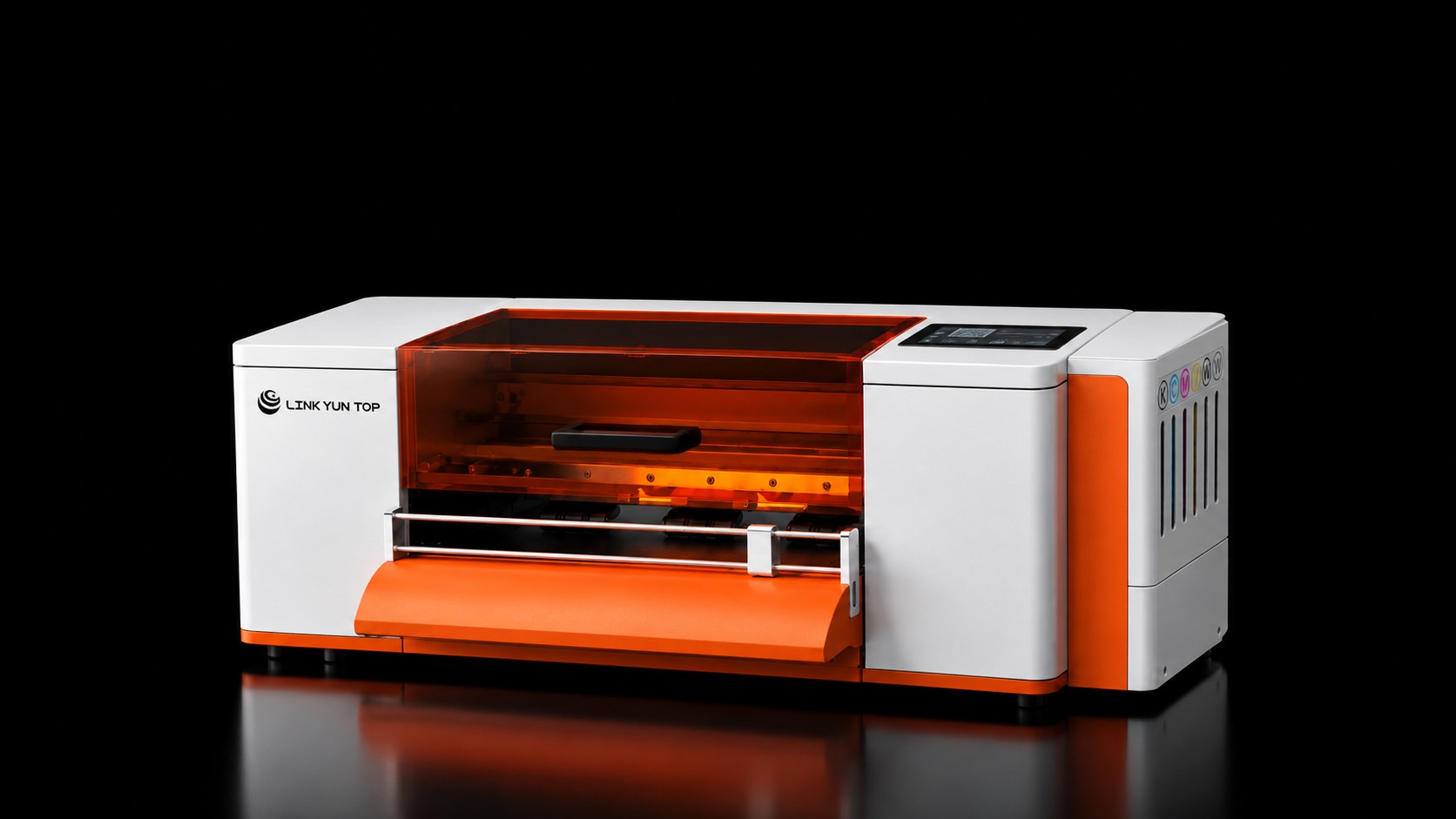
For many small custom apparel shops, traditional Direct-to-Film (DTF) workflows feel overly complicated before the first T-shirt is even pressed. Between dedicated Windows RIP workstations, dongle drivers, and tethered cables, printing a single chest logo or rush hoodie graphic can take more setup time than pressing the garment itself.
The LinkYunTop A301 13-inch DTF printer simplifies daily production by supporting two distinct, practical ways to send jobs to its original Epson F1080-A1 printhead:
- QR-Code Browser (H5) Upload from a smartphone, tablet, or laptop on the same Wi-Fi network for single graphics up to 33 × 33 cm (13 × 13 inches).
- USB Flash Drive Transfer via the built-in 5-inch touchscreen (files prepared on a computer) for multi-graphic runs and extended layouts up to 33 × 100 cm (330 mm × 1 m).
Below is a transparent, step-by-step look at how both workflows operate on the A301, what network and file limits apply, and how to choose the right method for each order in your shop.
1. Workflow 1: QR-Code Browser (H5) Printing from Phone, Tablet or Laptop
When a walk-in customer texts you a PNG logo or you want to test a full-front T-shirt graphic straight from your phone or laptop without copying files to a flash drive, the A301's browser-based H5 entry gives you a direct wireless path.
How the Browser Upload Path Works
- No App Installation Required: You scan the QR code displayed on the A301's 5-inch touchscreen using your smartphone, tablet, or open the same H5 web interface in your laptop browser. Both mobile devices and laptops access the same streamlined web interface and can browse local device files directly.
- Self-Service Email Registration (No Subscription Fees): First-time users register an account directly with an email address. Currently, accessing and using the A301 H5 browser printing platform requires no activation fee, monthly subscription, or annual software fee.
- Maximum Print Area (33 × 33 cm): Through the H5 browser path—whether accessed from a phone, tablet, or laptop—the maximum single print area is 33 × 33 cm (330 × 330 mm / 13 × 13 inches). That square footprint covers standard adult full-front T-shirt graphics, hoodie back prints, tote bag designs, and left-chest logos across the A301's 330 mm (13-inch) PET roll film width.
Network and Multi-User Rules to Know Before You Print
To keep expectations realistic, here are the exact operating conditions verified on the A301:
- Same Wi-Fi Network & Active Internet Required: Both the A301 printer and your phone, tablet, or laptop must be connected to the same local Wi-Fi network with an active internet connection.
- Single Active Controller at a Time: Multiple team members in a small shop can register accounts and use the H5 platform. However, only one logged-in account controls printing at a time. When switching from one operator's phone or laptop to another, the previous operator simply logs out of the H5 session so the next operator can log in and submit their print job.
2. Workflow 2: USB Flash Drive & 5-Inch Touchscreen Printing (Up to 33 × 100 cm)
While the 33 × 33 cm browser upload is convenient for individual garments and quick samples, production runs often require longer layouts or multiple graphics arranged along the roll. For those jobs, the A301 uses its USB flash drive workflow.
When to Use the USB Path
- Extended Print Length Up to 33 × 100 cm: Using the USB flash drive transfer path, the A301 supports single print jobs up to 33 × 100 cm (330 mm × 1,000 mm / 13 × 39.3 inches) on 330 mm (13-inch) PET transfer roll film.
- Multi-Image Batching: You can prepare multiple designs on a computer, save the print-ready files onto a USB flash drive, and insert the drive directly into the A301.
- Direct Control on the 5-Inch Touchscreen: Once the USB drive is inserted, you select your file, verify print settings (such as High print accuracy up to 2400 dpi), control carriage movement, and start the job directly from the printer's 5-inch touchscreen without keeping a computer tethered to the machine during printing.
Side-by-Side Comparison: Browser (H5) Path vs. USB Flash Drive Path
| Feature / Boundary | QR Browser (H5) Upload Path | USB Flash Drive Path |
|---|---|---|
| Supported Devices | Smartphone, tablet, or laptop browser | Files prepared on a computer, transferred via USB drive |
| Max Single Print Size | Up to 33 × 33 cm (330 × 330 mm) | Up to 33 × 100 cm (330 × 1,000 mm) |
| Network Requirement | Requires internet; printer & device on same Wi-Fi | Works offline at the printer via USB port & 5-inch touchscreen |
| Account / Software Cost | Email registration; no extra subscription fee | No account needed |
| Multi-User Handling | One logged-in account controls printing at a time | Any operator at the 5-inch touchscreen can select USB files |
| Best Use Case | Single T-shirt fronts, hoodie backs, chest logos & samples | Multi-graphic sheets, sleeve strips & 1-meter batch runs |
3. Hardware Under the Hood: Single Original Epson F1080-A1 Printhead
Regardless of whether you send a 33 × 33 cm graphic from your phone browser or load a 33 × 100 cm layout via USB, every drop of ink is fired by 1 × original Epson F1080-A1 printhead (a single-printhead configuration, not a dual-head carriage).
- Resolution & Rated Speed: The original Epson F1080-A1 printhead prints CMYK + White water-based pigment ink at up to 2400 dpi, with a documented rated speed of up to 1.2 m²/h at 720 × 2400 dpi (8 pass).
- Automatic White Ink Stirring and Circulation: While the printer is powered on, a built-in motorized stirrer agitates the white ink tank on schedule to help prevent titanium dioxide pigment from settling. A separate circulation loop keeps white ink moving through the lines at the same time.
- Automatic Printhead Cleaning: Operators can trigger Nozzle Clean directly from the 5-inch touchscreen (Light or Heavy cleaning modes) in addition to scheduled parking, sealing, and flushing at the capping station.
Verified Daily Check and 3–4 Day Idle Care Routine
Automatic stirring, circulation and cleaning reduce routine manual upkeep, but no water-based DTF printer is "zero maintenance" or guaranteed never to clog:
- Before Printing: Run a quick nozzle check from the touchscreen. If you notice a minor line dropout, run one light cleaning cycle and check again before starting your transfer run.
- After 3–4 Days Powered Off: If the printer has been turned off for three to four days, use the touchscreen carriage control to expose the rectangular capping station ink pad beneath the printhead, apply a small amount (we typically use about 2–3 ml; do not let it overflow) of the included printhead cleaning solution, run a heavy cleaning cycle on the touchscreen, and verify a clean nozzle check pattern before printing.
4. Power, Footprint and Studio Environment Summary
Before placing the A301 in your shop, verify your table space, electrical outlet, and room climate against the confirmed hardware specifications:
| Specification | Verified LinkYunTop A301 Value | Notes |
|---|---|---|
| Model & Media Width | LinkYunTop A301 — 330 mm (13 inches) | Fits standard 33 cm DTF PET roll film |
| Printhead | 1 × Original Epson F1080-A1 printhead | Single printhead; CMYK + White channels |
| Resolution & Speed | Up to 2400 dpi / Up to 1.2 m²/h (720 × 2400 dpi, 8 pass) | Output varies with coverage and print mode |
| White Ink & Nozzle Care | Automatic white ink stirring & automatic printhead cleaning | Nozzle cleaning can also be started from the touchscreen |
| QR Browser (H5) Print Size | Up to 33 × 33 cm (phone, tablet, laptop) | Requires same Wi-Fi network + internet; email login |
| USB Print Size | Up to 33 × 100 cm (via USB flash drive) | Supports multi-image jobs selected on the 5-inch touchscreen |
| Machine Size & Net Weight | 795 × 475 × 311 mm / 27.7 kg net | Package dimensions: 900 × 500 × 430 mm |
| Printer Nameplate Power | 110/220 V AC, 50–60 Hz, 2.5 A, 350 W | Confirmed per machine nameplate (printer host only; excludes oven/press) |
| Operating Environment | 18–30°C (64–86°F), 40–60% RH | Maintain humidity above 40% RH to protect nozzles |
| Setup Support | Step-by-step text and video guidance on WhatsApp | 7 days a week, usually within 24 hours |
Frequently Asked Questions (FAQ)
1. Can I print from both a smartphone and a laptop using the A301 browser interface?
Yes. Smartphones, tablets, and laptops can all access the same QR-code H5 web interface to upload local image files directly. Both the A301 printer and your device must be connected to the same Wi-Fi network with internet access, and the maximum single print size through the H5 browser path is 33 × 33 cm.
2. How do I print designs longer than 33 × 33 cm on the A301?
For longer transfers or multi-graphic layouts up to 33 × 100 cm (330 mm × 1 m) on 330 mm (13-inch) PET roll film, prepare your file on a computer and transfer it to the printer via a USB flash drive, then select and launch the job from the A301's 5-inch touchscreen.
3. Does the A301 mobile browser platform charge a monthly subscription fee?
No. Customers register directly with an email address, and there is currently no activation fee, monthly subscription, or annual fee to use the H5 browser upload platform. Note that only one logged-in account controls printing at a time; if another operator needs to print, the current user simply logs out first.
4. What is the electrical power rating of the A301 printer unit?
According to the machine's rear nameplate, the A301 printer host is rated for 110/220 V AC, 50–60 Hz, 2.5 A, 350 W. Keep the printer connected to stable power within an 18–30°C, 40–60% RH workspace, and plug high-wattage curing ovens or heat presses into separate electrical circuits.
Explore the LinkYunTop A301 and Starter Bundles
- See full printer details and reserve yours: Visit the A301 13-Inch DTF Printer with Epson F1080-A1 Printhead page to compare China shipping ($200 reservation deposit; $500 off with code WELCOME500) and U.S. warehouse preorders.
- Compare equipment packages: View the A301 DTF Printer Bundles & Starter Kits collection or read DTF Printer Bundles: Printer Only, Oven Kit or Complete Kit?.
- New to DTF printing? Read How to Choose a DTF Printer for a Small T-Shirt Business or contact our team with your artwork and workflow questions.
More A301 guides
- How to Choose a DTF Printer for a Small T-Shirt Business
- DTF Printer Bundles: Printer Only, Oven Kit or Complete Kit?
- Epson F1080-A1 Printhead, White Ink Stirring and Circulation: How the A301 Reduces DTF Clogs
- Setting Up a 13-Inch DTF Printer in a Small Apparel Shop: Space, 350W Power, Climate and Kit Costs